> ## Documentation Index
> Fetch the complete documentation index at: https://docs.literalai.com/llms.txt
> Use this file to discover all available pages before exploring further.
# Scoring
## Score Schemas
Literal AI offers an easy way to manage scores: **Score Schemas**.
With **Score Schemas**, admin users can control and expose to all users the various types of evaluations
allowed in their application. **Score Schemas** come in two flavors:
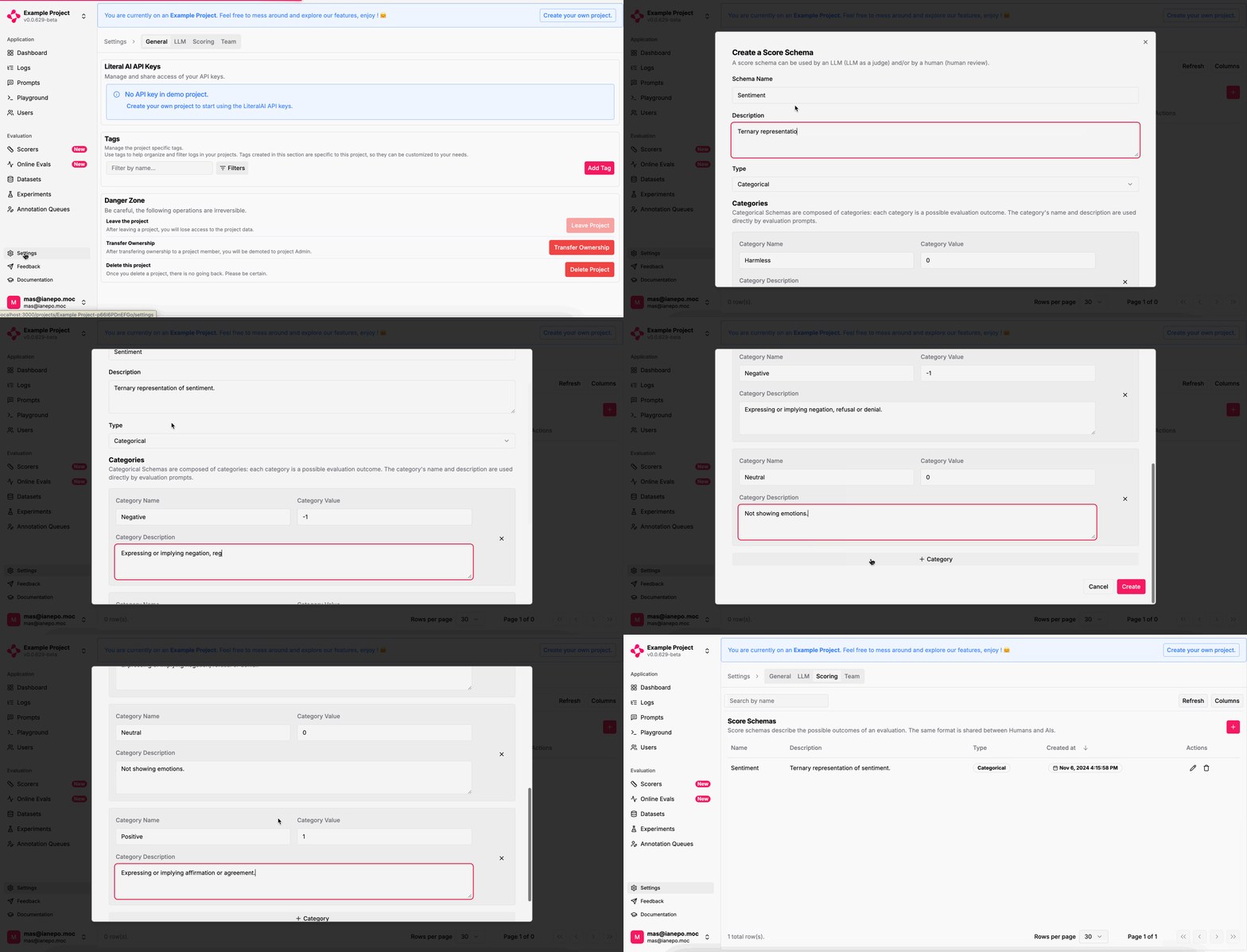
* **Categorical** -- Schemas let you create a set of categories, each tied to a numeric value.
* **Continuous** -- Schemas with a **\[min; max]** range which users score in.
For **Categorical** Schemas, each category has a description which is used to guide the scorer (be it **Human** or **AI**) in selecting the most
relevant category.
Here's how to create a Score Schema:
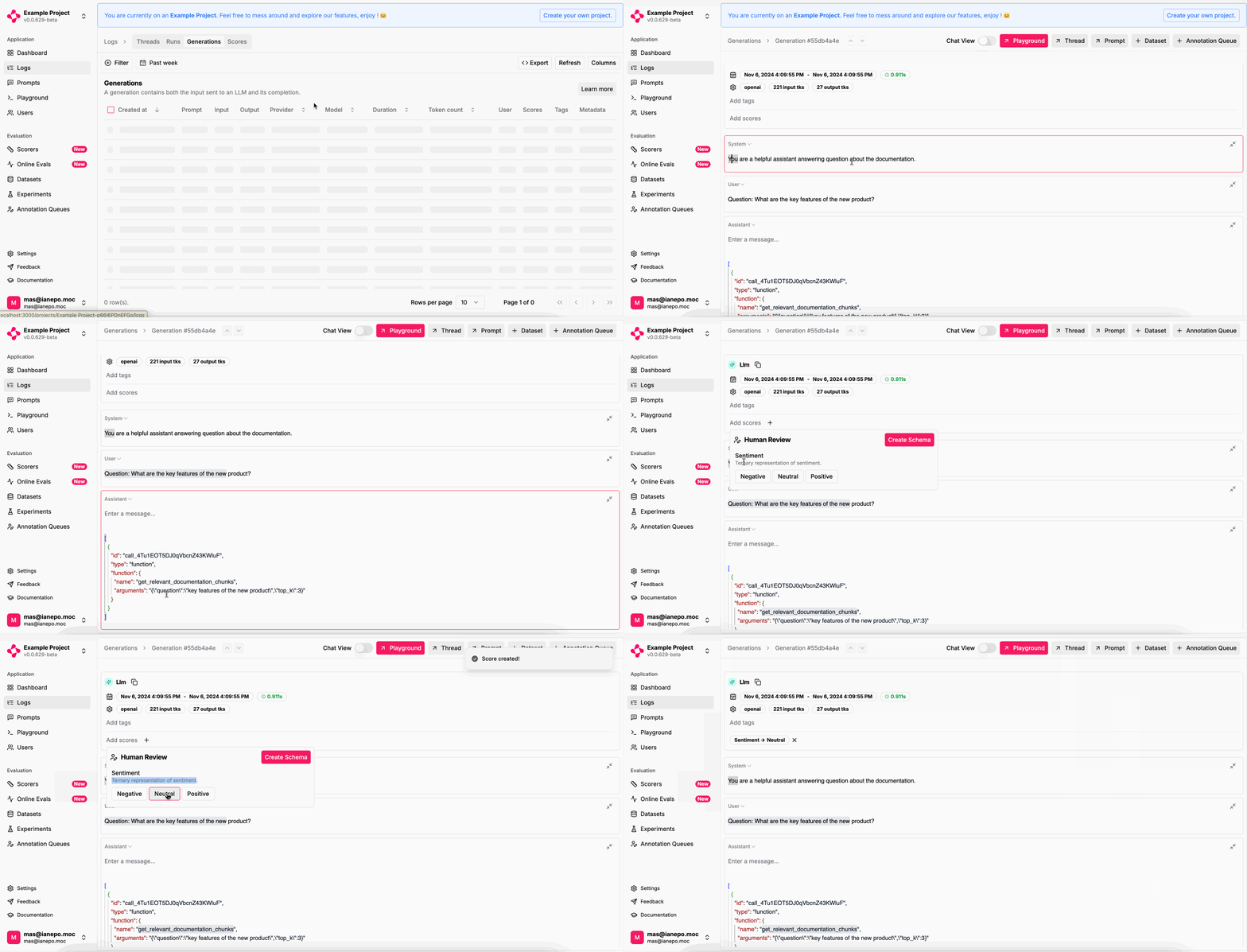
 Feel free to browse your steps from the Logs tab and simply add a "Human Review" directly on your `Step` and `Generation` entities:
 To go through a wide range of logs, leverage [annotation queues](/guides/annotation-queue)
which make it easier to streamline the review process.
To go through a wide range of logs, leverage [annotation queues](/guides/annotation-queue)
which make it easier to streamline the review process.