> ## Documentation Index
> Fetch the complete documentation index at: https://docs.literalai.com/llms.txt
> Use this file to discover all available pages before exploring further.
# Playground
> The playground is a place where you can create, test, and debug prompts.
Create your first Prompt on the Playground and run experiments on multiple LLMs.
## Overview
You can access the playground via:
1. **The main menu**\
Directly access a fresh playground to create, test and save prompts from scratch.
2. **Prompts**\
Start from an existing prompt template: edit and run experiments to validate your template/settings changes.
3. **LLM Generations**\
Investigate Generations from a real chat conversation and reproduce production issues.
If you start from scratch, you can open example templates, and iterate from there.
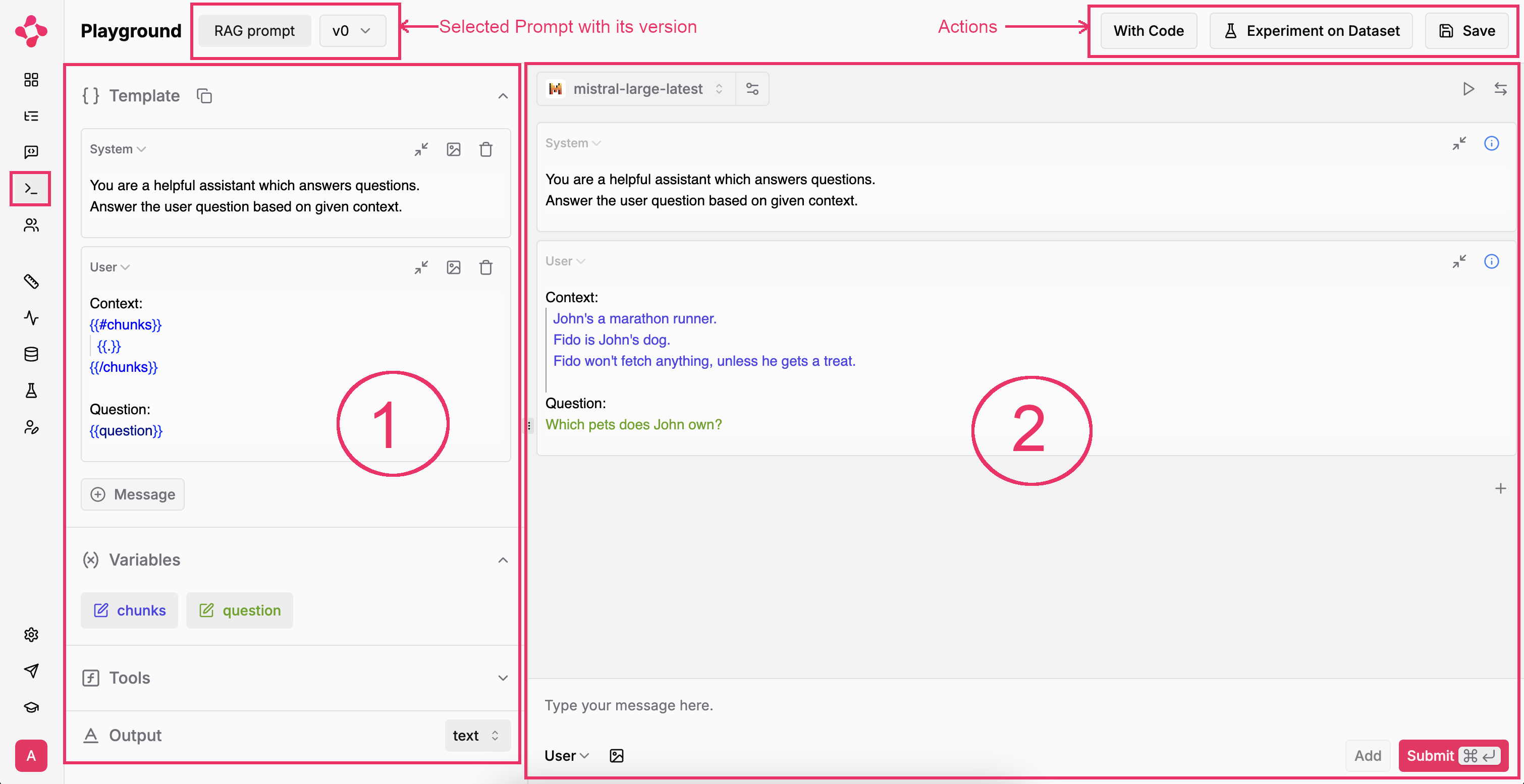
Depicted below is a view of the Playground opened on a `Prompt`.
The selected prompt and version show in the upper left corner.\
Right of it, three actions:
* `With Code`: Get a code snippet to [get the prompt programmatically](/guides/prompts#programmatically)
* `Experiment on Dataset`: Run [experiments](/guides/experiment) against a dataset of your choice.
* `Save`: Save the current prompt as a new version -- check out [Prompt Management](/guides/prompts)
The center pieces labeled 1 and 2 are respectively the **Prompt Template** and the **Interactive Chat**.
We describe their contents in the following sections.
 ## Prompt Template
### Template and Variables
Let's take a closer look at the Prompt Template section:
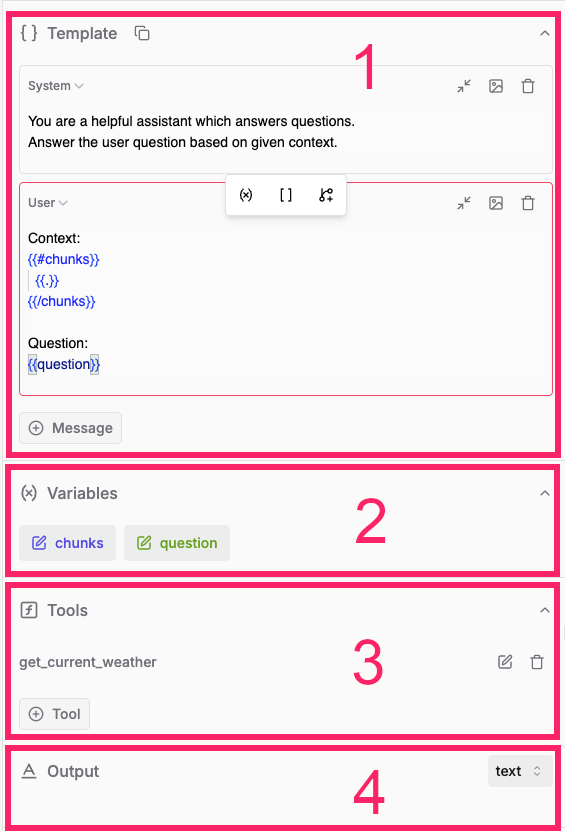
The Template and Variables parts (1 & 2 below) really contain that new "programming language" to instruct LLMs.
You can add multiple messages to your prompt:
* `System`: Instructions about the role of the assistant. For example, you can say that the assistant should provide concise answers.
* `User`: The user's input, often enriched with context.
* `Assistant`: An LLM response, to simulate a conversation flow.
* `Tool`: Response to a tool call.
## Prompt Template
### Template and Variables
Let's take a closer look at the Prompt Template section:
The Template and Variables parts (1 & 2 below) really contain that new "programming language" to instruct LLMs.
You can add multiple messages to your prompt:
* `System`: Instructions about the role of the assistant. For example, you can say that the assistant should provide concise answers.
* `User`: The user's input, often enriched with context.
* `Assistant`: An LLM response, to simulate a conversation flow.
* `Tool`: Response to a tool call.
 Avoid exposing variables on `System` messages and letting user input reach. Prefer to use variables in `User` and `Assistant` messages.
User messages typically contain variables to embed a user query along with context.
The example above shows a user message with two variables:
* `chunks`: The chunks retrieved, say from a vector database.
* `question`: The user's query.
You can specify default values for variables but those are usually defined in your application code.
Variables follow the [Mustache templating format](https://scalate.github.io/scalate/documentation/mustache.html#Syntax).
Double curly brackets (mustaches 😉) always surround variable names.\
A variable is written like `{{variable}}`.
If-statements and for-loops are written as `{{#x}} ... {{/x}}`:
* if `x` is a boolean value, the section tags act like a conditional `if` statement
* when `x` is an array, they behave like a `for` loop: access each element with `{{.}}`
### Tools
You can also declare tools on your prompt: given a tool description in proper JSON format, LLM models can determine whether a call to that tool is the next
best action based on the user's input.
If you need to specify the **return value** of a tool, use template messages above and select the `Tool` message type.
### Output types
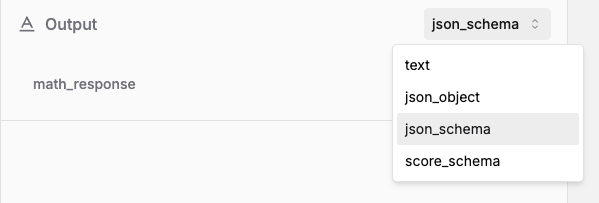
Choose the output format for your prompt:
Avoid exposing variables on `System` messages and letting user input reach. Prefer to use variables in `User` and `Assistant` messages.
User messages typically contain variables to embed a user query along with context.
The example above shows a user message with two variables:
* `chunks`: The chunks retrieved, say from a vector database.
* `question`: The user's query.
You can specify default values for variables but those are usually defined in your application code.
Variables follow the [Mustache templating format](https://scalate.github.io/scalate/documentation/mustache.html#Syntax).
Double curly brackets (mustaches 😉) always surround variable names.\
A variable is written like `{{variable}}`.
If-statements and for-loops are written as `{{#x}} ... {{/x}}`:
* if `x` is a boolean value, the section tags act like a conditional `if` statement
* when `x` is an array, they behave like a `for` loop: access each element with `{{.}}`
### Tools
You can also declare tools on your prompt: given a tool description in proper JSON format, LLM models can determine whether a call to that tool is the next
best action based on the user's input.
If you need to specify the **return value** of a tool, use template messages above and select the `Tool` message type.
### Output types
Choose the output format for your prompt:
 #### Text
`text`: free-text response
#### JSON mode
`json_object`: JSON response with no specific schema enforced. Some providers ask to **explicitly** instruct the LLM to output JSON.
#### JSON schema
`json_schema`: JSON response following the given JSON schema.
#### Score schema
`score_schema`: specific to Literal AI and particular useful for LLM-as-a-Judge prompts.
You can choose a Score Schema which forces your LLM to output a JSON of the form:
```json theme={null}
{
"reason": "...", // The reason behind the chosen category
"category": "..." // Category in score schema picked by LLM
}
```
Be advised that the format of `json_schema` itself varies from provider to provider.\
Make sure to follow your provider's specification.
## LLM Interaction
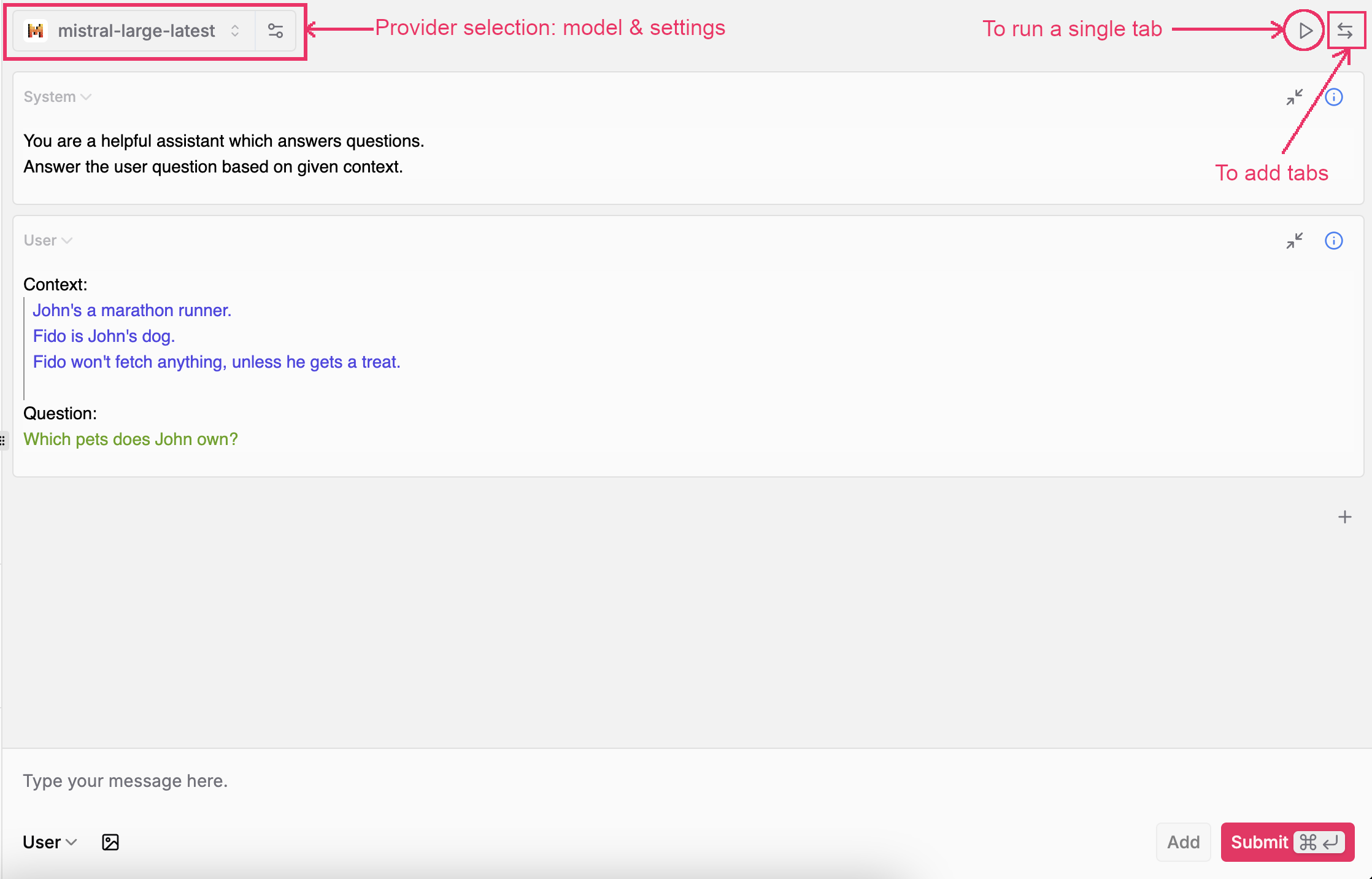
Interaction with LLMs takes place in the central panel:
#### Text
`text`: free-text response
#### JSON mode
`json_object`: JSON response with no specific schema enforced. Some providers ask to **explicitly** instruct the LLM to output JSON.
#### JSON schema
`json_schema`: JSON response following the given JSON schema.
#### Score schema
`score_schema`: specific to Literal AI and particular useful for LLM-as-a-Judge prompts.
You can choose a Score Schema which forces your LLM to output a JSON of the form:
```json theme={null}
{
"reason": "...", // The reason behind the chosen category
"category": "..." // Category in score schema picked by LLM
}
```
Be advised that the format of `json_schema` itself varies from provider to provider.\
Make sure to follow your provider's specification.
## LLM Interaction
Interaction with LLMs takes place in the central panel:
 ### LLM Settings
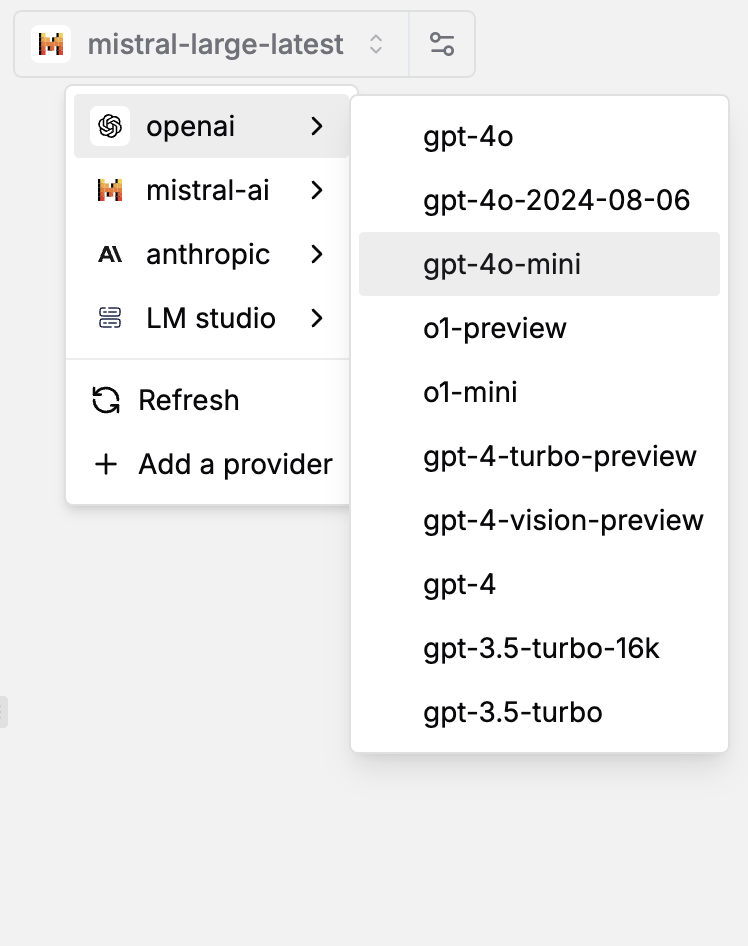
Atop, you will find the LLM settings. Select any configured LLM provider and pick a model.\
The settings icon lets you choose temperature, stop sequences, etc.
| | |
| ----------------------------------------------------------------------------------------------------------------------------------------------------------------------------------------------------------------------------------------------------------------------------------------------------------------------------------------------------------------------------------------------------------------------------------------------------------------------------------------------------------------------------------------------------------------------------------------------------------------------------------------------------------------------------------------------------------------------------------------------------------------------------------------------------------------------------------------------------------------------------------------------------------------------------------------------------------------------------------------------------------------------------------------------------------------------------------------------------------------------------------------------------------------------------------------------------------------------------------------------------------------------------------------------------------------------------------------------------------------------------------------------------------------------------------------------------------------------------- | --------------------------------------------------------------------------------------------------------------------------------------------------------------------------------------------------------------------------------------------------------------------------------------------------------------------------------------------------------------------------------------------------------------------------------------------------------------------------------------------------------------------------------------------------------------------------------------------------------------------------------------------------------------------------------------------------------------------------------------------------------------------------------------------------------------------------------------------------------------------------------------------------------------------------------------------------------------------------------------------------------------------------------------------------------------------------------------------------------------------------------------------------------------------------------------------------------------------------------------------------------------------------------------------------------------------------------------------------------------------------------------------------------------------------------------------------------------------------------------------- |
|
### LLM Settings
Atop, you will find the LLM settings. Select any configured LLM provider and pick a model.\
The settings icon lets you choose temperature, stop sequences, etc.
| | |
| ----------------------------------------------------------------------------------------------------------------------------------------------------------------------------------------------------------------------------------------------------------------------------------------------------------------------------------------------------------------------------------------------------------------------------------------------------------------------------------------------------------------------------------------------------------------------------------------------------------------------------------------------------------------------------------------------------------------------------------------------------------------------------------------------------------------------------------------------------------------------------------------------------------------------------------------------------------------------------------------------------------------------------------------------------------------------------------------------------------------------------------------------------------------------------------------------------------------------------------------------------------------------------------------------------------------------------------------------------------------------------------------------------------------------------------------------------------------------------- | --------------------------------------------------------------------------------------------------------------------------------------------------------------------------------------------------------------------------------------------------------------------------------------------------------------------------------------------------------------------------------------------------------------------------------------------------------------------------------------------------------------------------------------------------------------------------------------------------------------------------------------------------------------------------------------------------------------------------------------------------------------------------------------------------------------------------------------------------------------------------------------------------------------------------------------------------------------------------------------------------------------------------------------------------------------------------------------------------------------------------------------------------------------------------------------------------------------------------------------------------------------------------------------------------------------------------------------------------------------------------------------------------------------------------------------------------------------------------------------------- |
|  |
| 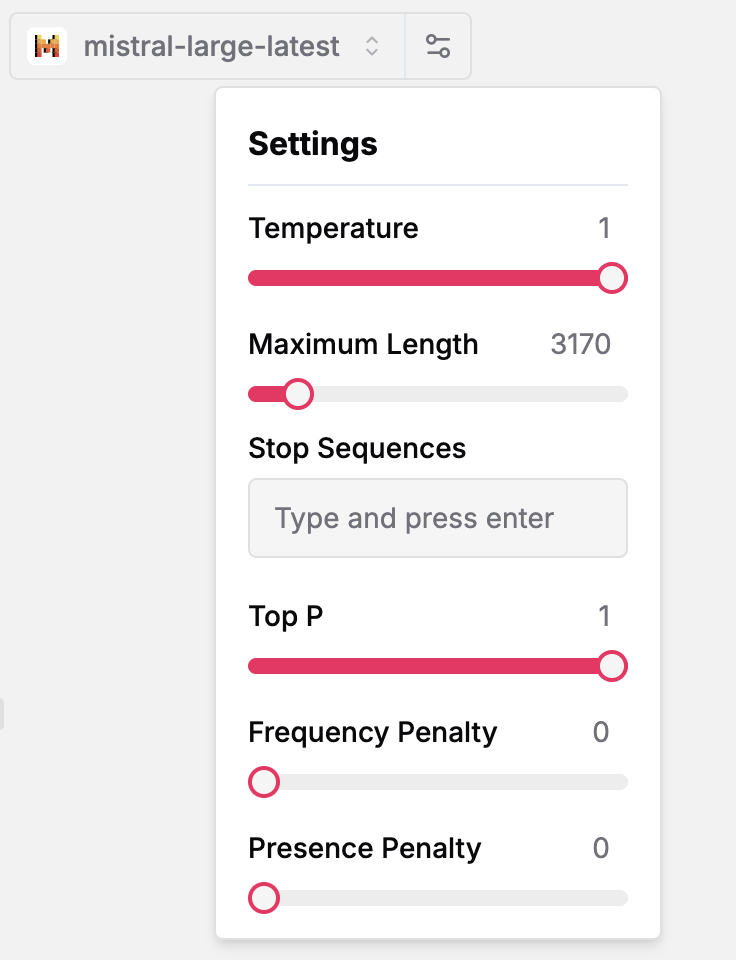 |
Here's a recap on classic LLM settings:
**Temperature**: Controls randomness. Lower temperatures result in less random generations (0 = deterministic). The higher the temperature, the closer to uniform token sampling.
**Maximum Length**: Maximum number of tokens to generate. Limits vary from model to model: anywhere between 1024 and 32,192.
**Stop Sequences**: Use up to four sequences where the API will stop generating further tokens. The returned text will not contain the stop sequence.
**Top P** or Nucleas Sampling: Controls diversity by restricting tokens to consider. Higher `Top P` values consider more possible tokens, even the less likely ones, which makes the generated text more diverse.
**Frequency Penalty**: Penalizes new tokens based on their existing frequency in the text so far. Decreases the model's likelihood to repeat the same line verbatim.
**Presence Penalty**: Penalizes new tokens based on whether they appear in the text so far. Increases the model's likelihood to talk about new topics.
### Try out & in-context debugging
The bottom box lets you input a multimodal message (text, image, etc.) to send to the LLM.
You may also add messages from within the canvas to simulate a conversation flow / test a new idea.
If you accessed the playground via an LLM call, you get the full conversation context.\
A must to troubleshoot production issues!
Use `Cmd+Enter` to send your message.
### Multiple LLMs
Finally, leverage multiple tabs to simultaneously run your prompt against different LLMs / settings.
Selectively run tabs with the play button on the top right of each tab.
|
Here's a recap on classic LLM settings:
**Temperature**: Controls randomness. Lower temperatures result in less random generations (0 = deterministic). The higher the temperature, the closer to uniform token sampling.
**Maximum Length**: Maximum number of tokens to generate. Limits vary from model to model: anywhere between 1024 and 32,192.
**Stop Sequences**: Use up to four sequences where the API will stop generating further tokens. The returned text will not contain the stop sequence.
**Top P** or Nucleas Sampling: Controls diversity by restricting tokens to consider. Higher `Top P` values consider more possible tokens, even the less likely ones, which makes the generated text more diverse.
**Frequency Penalty**: Penalizes new tokens based on their existing frequency in the text so far. Decreases the model's likelihood to repeat the same line verbatim.
**Presence Penalty**: Penalizes new tokens based on whether they appear in the text so far. Increases the model's likelihood to talk about new topics.
### Try out & in-context debugging
The bottom box lets you input a multimodal message (text, image, etc.) to send to the LLM.
You may also add messages from within the canvas to simulate a conversation flow / test a new idea.
If you accessed the playground via an LLM call, you get the full conversation context.\
A must to troubleshoot production issues!
Use `Cmd+Enter` to send your message.
### Multiple LLMs
Finally, leverage multiple tabs to simultaneously run your prompt against different LLMs / settings.
Selectively run tabs with the play button on the top right of each tab.
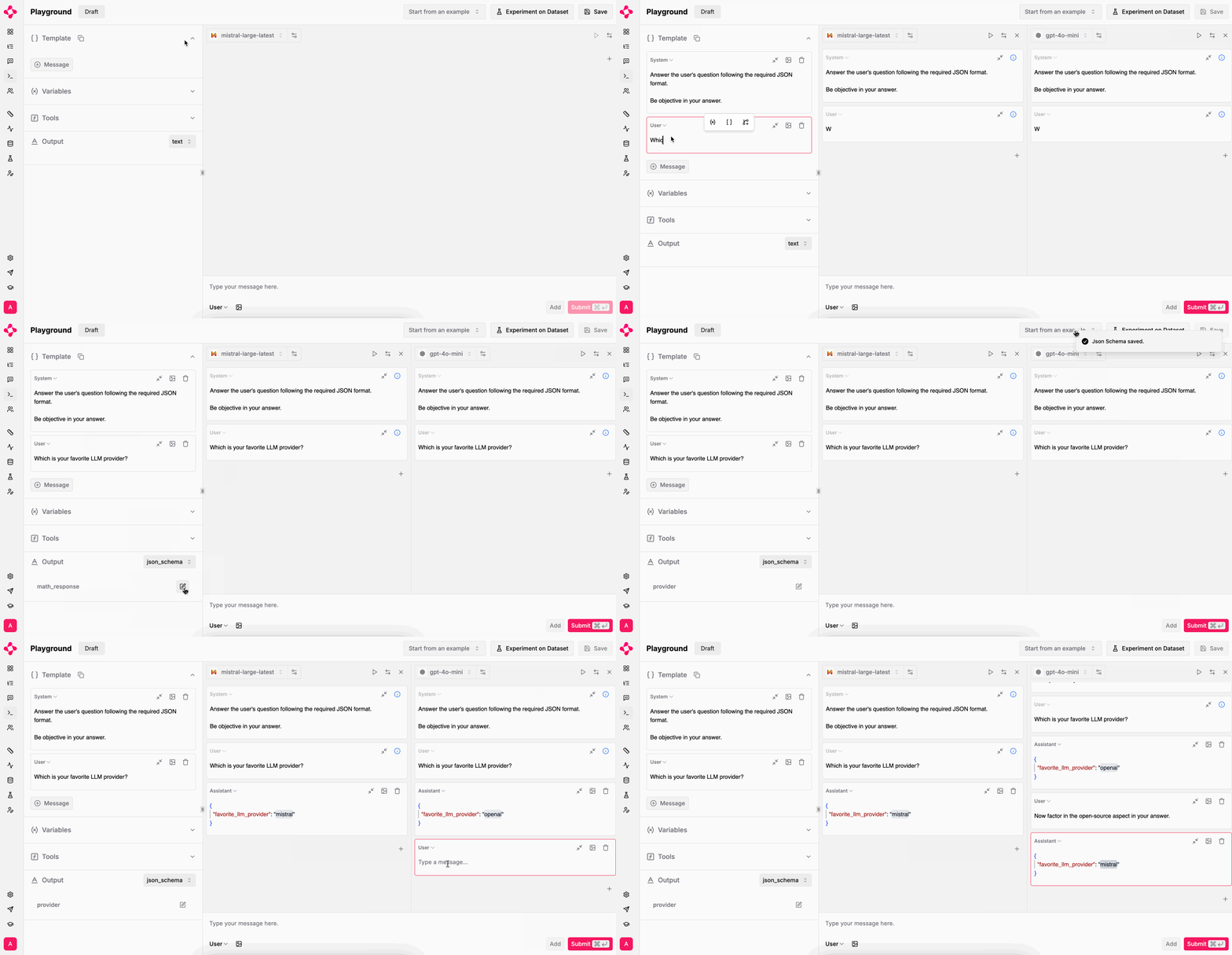 Once satisfied with your "vibes check", it's time to run [experiments](/guides/experiment) on larger datasets.
Saving, A/B testing and deploying your prompt comes in last.\
Check out the [Prompts](/guides/prompts) documentation.
Once satisfied with your "vibes check", it's time to run [experiments](/guides/experiment) on larger datasets.
Saving, A/B testing and deploying your prompt comes in last.\
Check out the [Prompts](/guides/prompts) documentation.