> ## Documentation Index
> Fetch the complete documentation index at: https://docs.literalai.com/llms.txt
> Use this file to discover all available pages before exploring further.
# Logs
> Logs are essential to monitor and improve your LLM app in production. Literal AI provides flexible and composable SDKs to log your LLM app at different levels of granularity.
## Semantics
 Literal AI approaches LLM logging at three levels:
1. **Generation**: Log of a single LLM call. (Generations are Steps.)
2. **Step**: Log of a regular function execution, which is usually an intermediate step in an LLM system. Possible `type`s are: `tool`, `embedding`, `retrieval`, `rerank`, `undefined`, etc. Steps can be considered as Spans.
3. **Run**: Trace of an Agent/Chain run, including its intermediate steps. Can contain one or multiple generations.
4. **Thread**: A collection of Runs that are part of a single conversation.
Literal AI approaches LLM logging at three levels:
1. **Generation**: Log of a single LLM call. (Generations are Steps.)
2. **Step**: Log of a regular function execution, which is usually an intermediate step in an LLM system. Possible `type`s are: `tool`, `embedding`, `retrieval`, `rerank`, `undefined`, etc. Steps can be considered as Spans.
3. **Run**: Trace of an Agent/Chain run, including its intermediate steps. Can contain one or multiple generations.
4. **Thread**: A collection of Runs that are part of a single conversation.
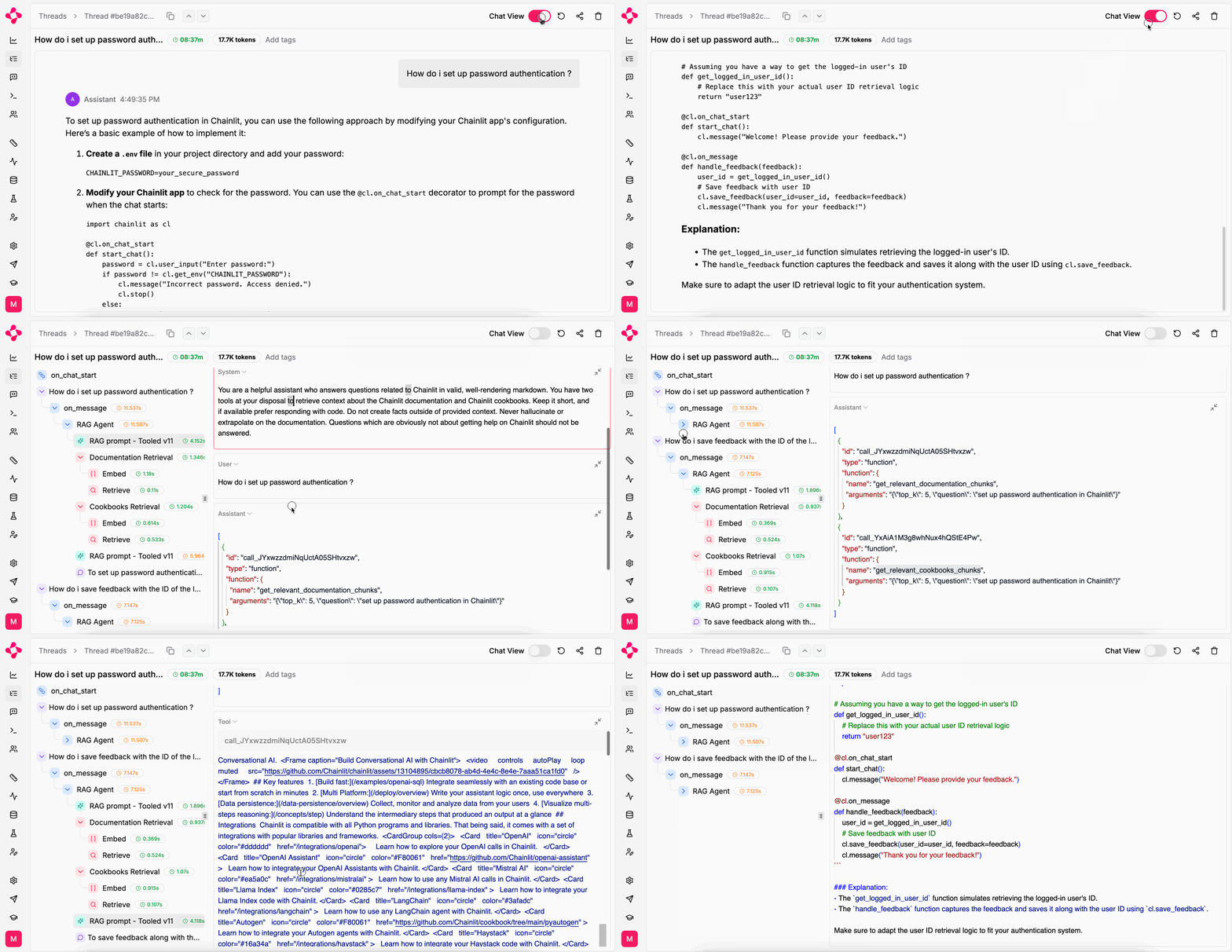 You can log a generation only (typically for extraction use cases), or log a run only (typically for task automation), or combine them in threads (typically for chatbots).
See [installation](/get-started/quick-start) to get your API key and instantiate the SDK
## Log an LLM Generation
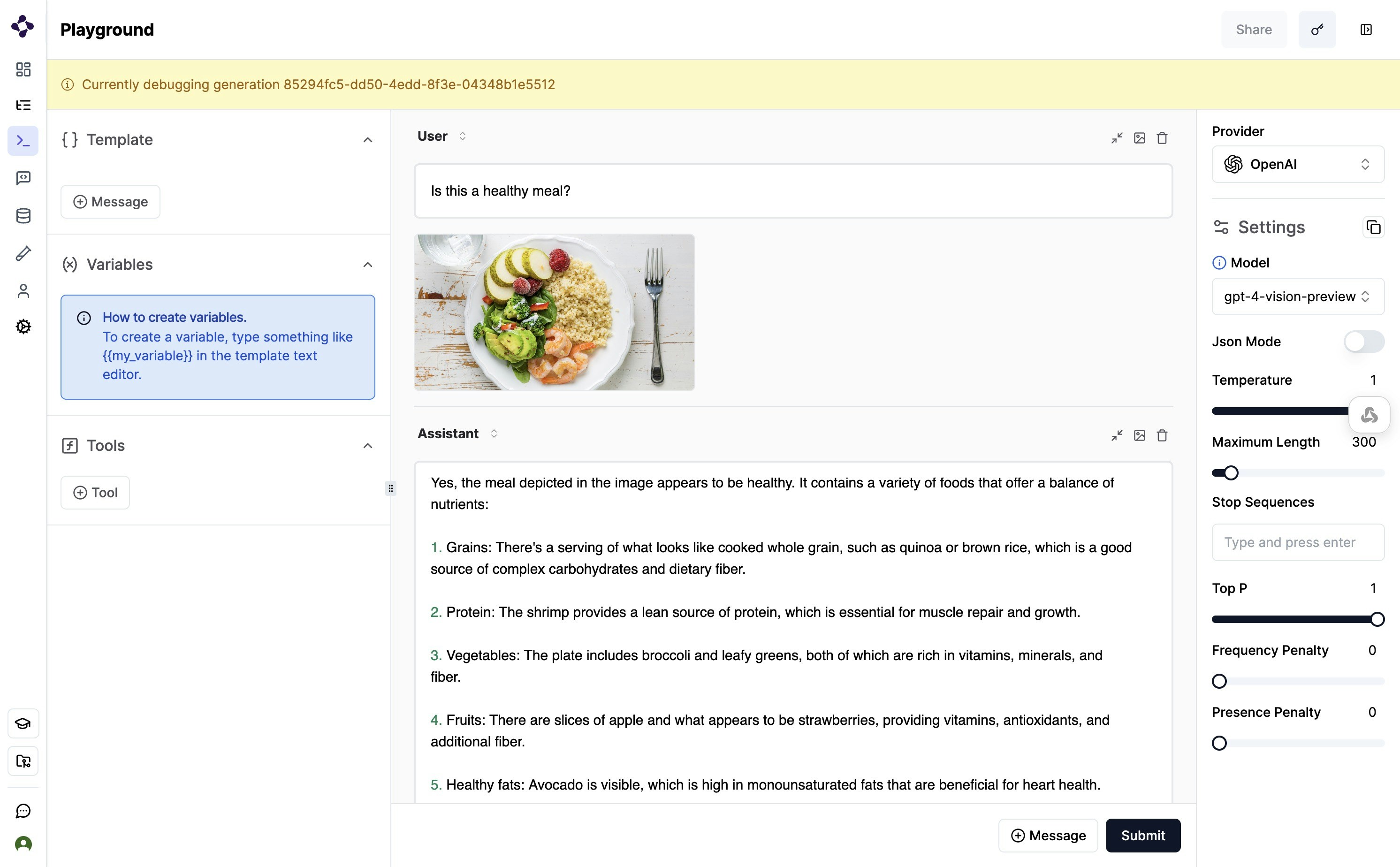
Generations are logged by [integrations](/integrations) with LLM providers. They capture the prompt, completion, settings, and token latency.
Here is an example with OpenAI:
```python Python theme={null}
literalai_client.instrument_openai()
# Run a regular OpenAI chat completion
from openai import OpenAI
oai = OpenAI()
def call_openai(user_input: str):
oai.chat.completions.create(
model="gpt-4o",
messages=[{ "role": "user", "content": user_input }]
)
call_openai("Hello world")
```
```typescript TypeScript theme={null}
literalAiClient.instrumentation.openai();
const openai = new OpenAI();
async function callOpenAI(userInput: string) {
const stream = await openai.chat.completions.create({
model: 'gpt-4',
stream: true,
messages: [{ role: 'user', content: userInput }]
});
};
callOpenAI("Hello world");
```
Check out the [TypeScript client](/typescript-client/with-wrappers) to learn more about the `wrap` function.
### Multimodal LLM
You can leverage multimodal capabilities on Literal AI in two ways:
* Simple logging on API calls to Multimodal LLM APIs, like `gpt-4o`
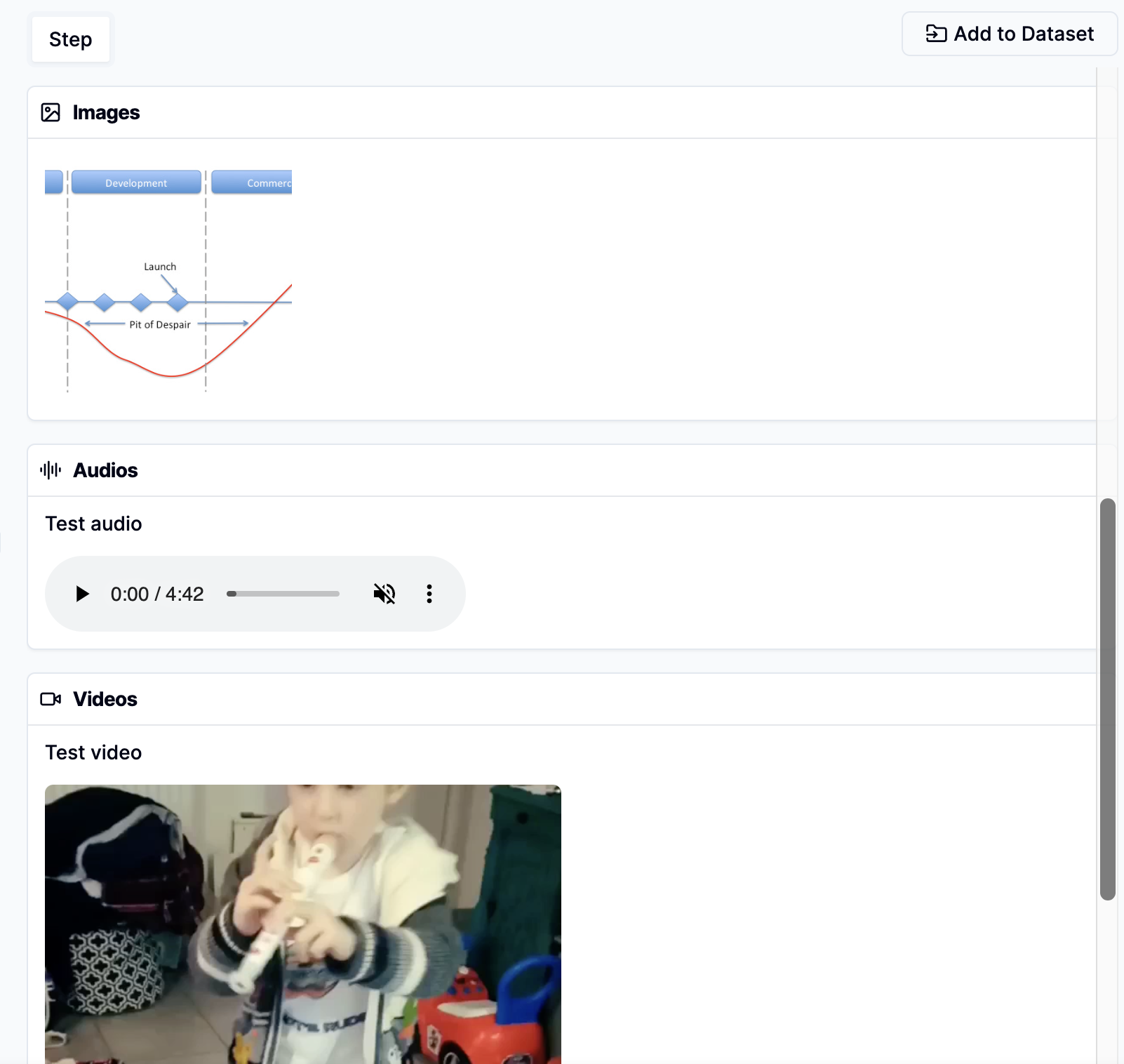
* Save multimodal files as [Attachments](/guides/logs#add-attachments-to-steps). Image, videos, audio and other files are shown as `Attachment` in the Literal AI platform, which can be accessed and downloaded via a `Step`.
You can log a generation only (typically for extraction use cases), or log a run only (typically for task automation), or combine them in threads (typically for chatbots).
See [installation](/get-started/quick-start) to get your API key and instantiate the SDK
## Log an LLM Generation
Generations are logged by [integrations](/integrations) with LLM providers. They capture the prompt, completion, settings, and token latency.
Here is an example with OpenAI:
```python Python theme={null}
literalai_client.instrument_openai()
# Run a regular OpenAI chat completion
from openai import OpenAI
oai = OpenAI()
def call_openai(user_input: str):
oai.chat.completions.create(
model="gpt-4o",
messages=[{ "role": "user", "content": user_input }]
)
call_openai("Hello world")
```
```typescript TypeScript theme={null}
literalAiClient.instrumentation.openai();
const openai = new OpenAI();
async function callOpenAI(userInput: string) {
const stream = await openai.chat.completions.create({
model: 'gpt-4',
stream: true,
messages: [{ role: 'user', content: userInput }]
});
};
callOpenAI("Hello world");
```
Check out the [TypeScript client](/typescript-client/with-wrappers) to learn more about the `wrap` function.
### Multimodal LLM
You can leverage multimodal capabilities on Literal AI in two ways:
* Simple logging on API calls to Multimodal LLM APIs, like `gpt-4o`
* Save multimodal files as [Attachments](/guides/logs#add-attachments-to-steps). Image, videos, audio and other files are shown as `Attachment` in the Literal AI platform, which can be accessed and downloaded via a `Step`.
 ## Log a Run
A **Run** represents a trace of an Agent or Chain execution, capturing all intermediate steps and actions.
Runs can be logged manually using decorators or through framework integrations such as [Llama Index](/integrations/llama-index) or [LangChain](/integrations/langchain).
### Log a Run with Intermediate Steps
Here's how you can log a Run with intermediate steps using Python and TypeScript:
```python Python theme={null}
@literalai_client.step(type="tool")
def get_temperature(city: str):
return "10C"
@literalai_client.run
def my_agent(user_input: str):
# Reusing the OpenAI call from the previous example
call_openai(user_input)
# Naive tool example
get_temperature("paris")
return "Success"
my_agent("Hello world")
# Wait for all steps to be sent. This is NOT needed in production code.
literalai_client.flush()
```
```typescript TypeScript theme={null}
async function getTemperature(city: string) {
return literalAiClient
.step({
type: 'tool',
name: 'Get Temperature',
input: { city },
})
.wrap(() => {
return { content: '10C' };
});
}
async function myAgent(userInput: string) {
return literalAiClient
.run({
name: 'My Agent',
input: { userInput }
})
.wrap(async () => {
// Reusing the OpenAI call from the previous example
await callOpenAI(userInput);
// Naive tool example
await getTemperature("Paris");
return { content: 'Success' };
});
}
myAgent("Hello world");
```
### Add Metadata and Tags to Steps
**Tags** and **Metadata** can be added to both Runs and Steps to provide additional context and facilitate filtering and categorization.
```python Python theme={null}
@literalai_client.run
def my_step(input):
current_step = literalai_client.get_current_step()
# some code, llm call, tool call, etc.
current_step.metadata = {"region": "europe"}
current_step.tags = ["to_review"]
return "answer"
```
```typescript TypeScript theme={null}
import { LiteralClient } from "@literalai/client";
const literalAiClient = new LiteralClient({apiKey: process.env["LITERAL_API_KEY"]});
// The Assistant could have intermediary steps
async function myRun() {
return literalAiClient
.step({
type: 'run',
name: 'My Run',
input: { content: 'My run Input' },
metadata: { region: "europe" },
tags: ["to_review"],
})
.wrap(() => {
return { content: 'Success' };
});
}
```
### Add Attachments to Steps
You can attach files to a Run or any of its intermediate steps, which is particularly useful for multimodal use cases.
## Log a Run
A **Run** represents a trace of an Agent or Chain execution, capturing all intermediate steps and actions.
Runs can be logged manually using decorators or through framework integrations such as [Llama Index](/integrations/llama-index) or [LangChain](/integrations/langchain).
### Log a Run with Intermediate Steps
Here's how you can log a Run with intermediate steps using Python and TypeScript:
```python Python theme={null}
@literalai_client.step(type="tool")
def get_temperature(city: str):
return "10C"
@literalai_client.run
def my_agent(user_input: str):
# Reusing the OpenAI call from the previous example
call_openai(user_input)
# Naive tool example
get_temperature("paris")
return "Success"
my_agent("Hello world")
# Wait for all steps to be sent. This is NOT needed in production code.
literalai_client.flush()
```
```typescript TypeScript theme={null}
async function getTemperature(city: string) {
return literalAiClient
.step({
type: 'tool',
name: 'Get Temperature',
input: { city },
})
.wrap(() => {
return { content: '10C' };
});
}
async function myAgent(userInput: string) {
return literalAiClient
.run({
name: 'My Agent',
input: { userInput }
})
.wrap(async () => {
// Reusing the OpenAI call from the previous example
await callOpenAI(userInput);
// Naive tool example
await getTemperature("Paris");
return { content: 'Success' };
});
}
myAgent("Hello world");
```
### Add Metadata and Tags to Steps
**Tags** and **Metadata** can be added to both Runs and Steps to provide additional context and facilitate filtering and categorization.
```python Python theme={null}
@literalai_client.run
def my_step(input):
current_step = literalai_client.get_current_step()
# some code, llm call, tool call, etc.
current_step.metadata = {"region": "europe"}
current_step.tags = ["to_review"]
return "answer"
```
```typescript TypeScript theme={null}
import { LiteralClient } from "@literalai/client";
const literalAiClient = new LiteralClient({apiKey: process.env["LITERAL_API_KEY"]});
// The Assistant could have intermediary steps
async function myRun() {
return literalAiClient
.step({
type: 'run',
name: 'My Run',
input: { content: 'My run Input' },
metadata: { region: "europe" },
tags: ["to_review"],
})
.wrap(() => {
return { content: 'Success' };
});
}
```
### Add Attachments to Steps
You can attach files to a Run or any of its intermediate steps, which is particularly useful for multimodal use cases.
 ```python Python theme={null}
@literalai_client.step(type="tool")
def load_document():
with open ("./some.pdf", "rb") as file:
literalai_client.api.create_attachment(
name="pdf_document",
content=file.read()
)
return "doc loaded"
```
```typescript TypeScript theme={null}
async function loadDocument(city: string) {
return literalAiClient
.step({
type: 'tool',
input: { document },
})
.wrap(() => {
const fileStream = fs.createReadStream('./some.pdf');
const mime = 'application/pdf';
await literalAiClient.api.createAttachment({
content: fileStream,
mime,
name: 'pdf_document'
});
return { content: "doc loaded" };
});
}
```
### Learn More
The intermediate steps and the agent itself are logged using the `Step` class. You can learn more about the Step API in the following references:
Learn how to use the Python Step API.
Learn how to use the TypeScript Step API.
## Log a Thread
You can interact with an example Thread in the platform [here](https://cloud.getliteral.ai/thread/b3b61ec8-0d8a-444d-9e70-d6929c1129d1).
It is up to the application to keep track of the thread ID and pass it to the Literal AI client.
Every run logged with the same thread ID will be part of the same conversation.
Here is an example:
```python Python theme={null}
import uuid
def process_message(thread_id: str, user_input: str):
with literalai_client.thread(thread_id=thread_id) as thread:
# Reusing the Agent from the previous example
my_agent(user_input)
thread_id = str(uuid.uuid4())
# Calling the agent a first time
process_message(thread_id=thread_id, user_input="foo")
# Calling the agent a second time with the same thread ID
process_message(thread_id=thread_id, user_input="bar")
# Wait for all steps to be sent. This is NOT needed in production code.
literalai_client.flush()
```
```typescript TypeScript theme={null}
import { v4 as uuidv4 } from 'uuid';
async function processMessage(threadId: string, userInput: string) {
await literalAiClient
.thread({ id: threadId})
.wrap(async () => {
await myAgent(userInput);
});
}
const threadId = uuidv4();
// Calling the agent a first time
processMessage(threadId, "foo");
// Calling the agent a second time with the same thread ID
processMessage(threadId, "bar");
```
You can learn more about the Thread API in the following references:
Learn how to use the Python Thread API.
Learn how to use the TypeScript Thread API.
### Bind a `Thread` to a `User`
You can bind a `Thread` to a `User` to track their activity: quite handy for chatbots and conversational AIs!
Simply provide a unique `User` identifier, such as an email.
```python Python theme={null}
# If the user `john.doe@example.com` does not exist, it's automatically created.
def process_message(thread_id: str, user_input: str):
with literalai_client.thread(thread_id=thread_id,
participant_id="john.doe@example.com") as thread:
# Reusing the Agent from the previous example
my_agent(user_input)
```
```typescript TypeScript theme={null}
// If the user `john.doe@example.com` does not exist, it's automatically created.
async function processMessage(threadId: string, userInput: string) {
await literalAiClient
.thread({ participantId: "john.doe@example.com", id: threadId})
.wrap(async () => {
await myAgent(userInput);
});
}
```
You can create a `User` at any time with the [create\_user API](/python-client/api-reference/api#create-user).\
If your `User` already exists, you may update its `metadata` with the [update\_user API](/python-client/api-reference/api#update-user).
The Literal AI client method `thread()` takes a `participant_id` (`participantId` in TypeScript) argument which accepts any of:
* `User.id`: the unique ID of your `User` -- it's a UUID
* `User.identifier`: the unique identifier of your `User` -- it can be an email, a username, etc.
Careful with collisions when letting users pick their own `identifier`!
## Log to a Specific Environment
Literal AI supports logging to different environments, which allows you to separate your development, staging, and production data: `dev`, `staging`, `prod`.
This is particularly useful for managing your LLM application lifecycle.
To specify an environment when initializing the LiteralClient, you can use the `environment` parameter:
```python Python theme={null}
literalai_client = LiteralClient(environment="dev")
```
```typescript TypeScript theme={null}
const literalAiClient = new LiteralClient({ environment: "dev" });
```
## Log with a Release
Literal AI supports pairing your logs to a release, a release is a version of your deployed code to help you identify new issues and regressions.
This is particularly useful for managing your LLM application once in production.
The value can be arbitrary, but we recommend Semantic Versioning, Calendar Versioning, or the Git commit SHA.
To specify a release when initializing the LiteralClient, you can use the `release` parameter:
```python Python theme={null}
literalai_client = LiteralClient(release="81bec25")
```
```typescript TypeScript theme={null}
const literalAiClient = new LiteralClient({ release: "81bec25" });
```
Your logs will have a new key `release` in the metadata.
## Log a Distributed Trace
Learn how to log distributed traces with Literal AI.
## Add a Score
**Scores** allow you to evaluate the LLM system performance at three levels: LLM generations, Agent Runs and Conversation Threads.
Scores can be human generated (human feedback, like a thump up or down), or AI generated (hallucination evaluation for instance).
They can be visualized on the dashboard charts and used as filters.
### Add a User Feedback
```python Python theme={null}
def add_user_feedback(run_id: str, value: int, comment: str):
literalai_client.api.create_score(
step_id=run_id,
name="user-feedback",
type="HUMAN",
value=value,
comment=comment,
)
```
```typescript TypeScript theme={null}
async function addUserFeedback(runId: string, value: number, comment: string) {
const score = await literalAiClient.api.createScore({
stepId: runId,
name: 'user-feedback',
type: 'HUMAN',
comment,
value,
});
};
```
### Add a Product-Related Metric
Correlate your LLM system to a product metric, such as conversion, churn, upsell, etc.
This can be done by:
* Adding a specific product-related score on Literal AI.
* Sending the logged run id to your analytics system, such as PostHog or Amplitude.
### Add an AI Evaluation Result
Refer to [Online Evals](/guides/online-evals)
## Fetch Existing Logs
You can fetch existing logs using the SDKs. Here is an example to fetch the last 5 threads where a user participated:
```python Python theme={null}
from literalai import LiteralClient
literalai_client = LiteralClient()
user_id = 'uuid'
threads = literalai_client.api.list_threads(
first=5,
filters=[{"operator": "eq", "field": "participantId", "value": user_id}]
)
for d in threads.data:
print(d.to_dict())
literalai_client.flush_and_stop()
```
```typescript TypeScript theme={null}
import { LiteralClient } from '@literalai/client';
const literalAiClient = new LiteralClient("YOUR_API_KEY");
async function main() {
const userId = 'uuid'
const threads = await literalAiClient.api.getThreads({first: 5, filters: [{"operator": "eq", "field": "participantId", "value": userId}]});
console.log(threads);
}
```
More generally, you can fetch any Literal AI object. Check out the SDKs and API reference to learn how.
## On Literal AI
### Filter logs
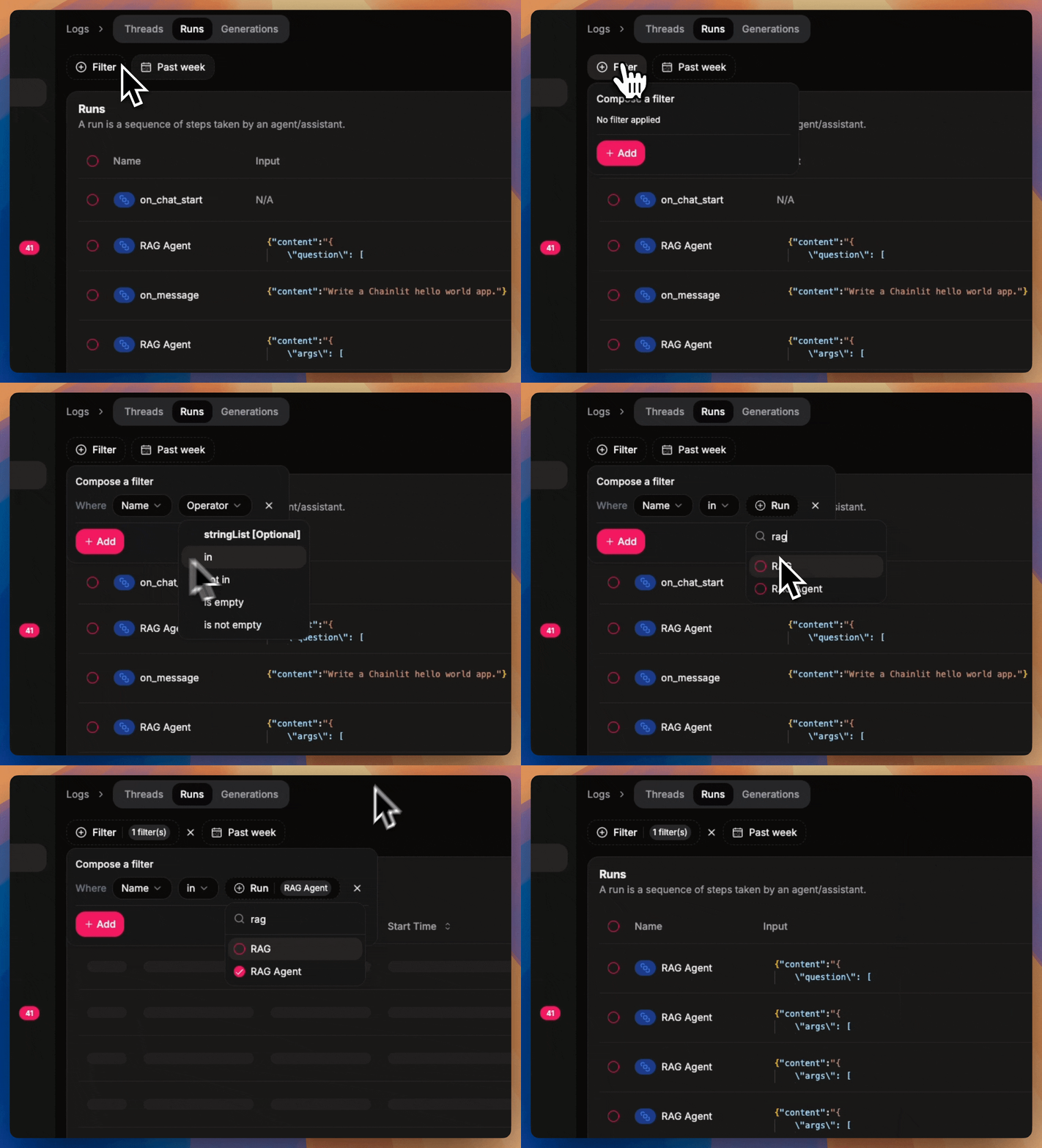
Leverage the powerful filters on Literal AI. Use these same filters to export your data using the SDKs.
```python Python theme={null}
@literalai_client.step(type="tool")
def load_document():
with open ("./some.pdf", "rb") as file:
literalai_client.api.create_attachment(
name="pdf_document",
content=file.read()
)
return "doc loaded"
```
```typescript TypeScript theme={null}
async function loadDocument(city: string) {
return literalAiClient
.step({
type: 'tool',
input: { document },
})
.wrap(() => {
const fileStream = fs.createReadStream('./some.pdf');
const mime = 'application/pdf';
await literalAiClient.api.createAttachment({
content: fileStream,
mime,
name: 'pdf_document'
});
return { content: "doc loaded" };
});
}
```
### Learn More
The intermediate steps and the agent itself are logged using the `Step` class. You can learn more about the Step API in the following references:
Learn how to use the Python Step API.
Learn how to use the TypeScript Step API.
## Log a Thread
You can interact with an example Thread in the platform [here](https://cloud.getliteral.ai/thread/b3b61ec8-0d8a-444d-9e70-d6929c1129d1).
It is up to the application to keep track of the thread ID and pass it to the Literal AI client.
Every run logged with the same thread ID will be part of the same conversation.
Here is an example:
```python Python theme={null}
import uuid
def process_message(thread_id: str, user_input: str):
with literalai_client.thread(thread_id=thread_id) as thread:
# Reusing the Agent from the previous example
my_agent(user_input)
thread_id = str(uuid.uuid4())
# Calling the agent a first time
process_message(thread_id=thread_id, user_input="foo")
# Calling the agent a second time with the same thread ID
process_message(thread_id=thread_id, user_input="bar")
# Wait for all steps to be sent. This is NOT needed in production code.
literalai_client.flush()
```
```typescript TypeScript theme={null}
import { v4 as uuidv4 } from 'uuid';
async function processMessage(threadId: string, userInput: string) {
await literalAiClient
.thread({ id: threadId})
.wrap(async () => {
await myAgent(userInput);
});
}
const threadId = uuidv4();
// Calling the agent a first time
processMessage(threadId, "foo");
// Calling the agent a second time with the same thread ID
processMessage(threadId, "bar");
```
You can learn more about the Thread API in the following references:
Learn how to use the Python Thread API.
Learn how to use the TypeScript Thread API.
### Bind a `Thread` to a `User`
You can bind a `Thread` to a `User` to track their activity: quite handy for chatbots and conversational AIs!
Simply provide a unique `User` identifier, such as an email.
```python Python theme={null}
# If the user `john.doe@example.com` does not exist, it's automatically created.
def process_message(thread_id: str, user_input: str):
with literalai_client.thread(thread_id=thread_id,
participant_id="john.doe@example.com") as thread:
# Reusing the Agent from the previous example
my_agent(user_input)
```
```typescript TypeScript theme={null}
// If the user `john.doe@example.com` does not exist, it's automatically created.
async function processMessage(threadId: string, userInput: string) {
await literalAiClient
.thread({ participantId: "john.doe@example.com", id: threadId})
.wrap(async () => {
await myAgent(userInput);
});
}
```
You can create a `User` at any time with the [create\_user API](/python-client/api-reference/api#create-user).\
If your `User` already exists, you may update its `metadata` with the [update\_user API](/python-client/api-reference/api#update-user).
The Literal AI client method `thread()` takes a `participant_id` (`participantId` in TypeScript) argument which accepts any of:
* `User.id`: the unique ID of your `User` -- it's a UUID
* `User.identifier`: the unique identifier of your `User` -- it can be an email, a username, etc.
Careful with collisions when letting users pick their own `identifier`!
## Log to a Specific Environment
Literal AI supports logging to different environments, which allows you to separate your development, staging, and production data: `dev`, `staging`, `prod`.
This is particularly useful for managing your LLM application lifecycle.
To specify an environment when initializing the LiteralClient, you can use the `environment` parameter:
```python Python theme={null}
literalai_client = LiteralClient(environment="dev")
```
```typescript TypeScript theme={null}
const literalAiClient = new LiteralClient({ environment: "dev" });
```
## Log with a Release
Literal AI supports pairing your logs to a release, a release is a version of your deployed code to help you identify new issues and regressions.
This is particularly useful for managing your LLM application once in production.
The value can be arbitrary, but we recommend Semantic Versioning, Calendar Versioning, or the Git commit SHA.
To specify a release when initializing the LiteralClient, you can use the `release` parameter:
```python Python theme={null}
literalai_client = LiteralClient(release="81bec25")
```
```typescript TypeScript theme={null}
const literalAiClient = new LiteralClient({ release: "81bec25" });
```
Your logs will have a new key `release` in the metadata.
## Log a Distributed Trace
Learn how to log distributed traces with Literal AI.
## Add a Score
**Scores** allow you to evaluate the LLM system performance at three levels: LLM generations, Agent Runs and Conversation Threads.
Scores can be human generated (human feedback, like a thump up or down), or AI generated (hallucination evaluation for instance).
They can be visualized on the dashboard charts and used as filters.
### Add a User Feedback
```python Python theme={null}
def add_user_feedback(run_id: str, value: int, comment: str):
literalai_client.api.create_score(
step_id=run_id,
name="user-feedback",
type="HUMAN",
value=value,
comment=comment,
)
```
```typescript TypeScript theme={null}
async function addUserFeedback(runId: string, value: number, comment: string) {
const score = await literalAiClient.api.createScore({
stepId: runId,
name: 'user-feedback',
type: 'HUMAN',
comment,
value,
});
};
```
### Add a Product-Related Metric
Correlate your LLM system to a product metric, such as conversion, churn, upsell, etc.
This can be done by:
* Adding a specific product-related score on Literal AI.
* Sending the logged run id to your analytics system, such as PostHog or Amplitude.
### Add an AI Evaluation Result
Refer to [Online Evals](/guides/online-evals)
## Fetch Existing Logs
You can fetch existing logs using the SDKs. Here is an example to fetch the last 5 threads where a user participated:
```python Python theme={null}
from literalai import LiteralClient
literalai_client = LiteralClient()
user_id = 'uuid'
threads = literalai_client.api.list_threads(
first=5,
filters=[{"operator": "eq", "field": "participantId", "value": user_id}]
)
for d in threads.data:
print(d.to_dict())
literalai_client.flush_and_stop()
```
```typescript TypeScript theme={null}
import { LiteralClient } from '@literalai/client';
const literalAiClient = new LiteralClient("YOUR_API_KEY");
async function main() {
const userId = 'uuid'
const threads = await literalAiClient.api.getThreads({first: 5, filters: [{"operator": "eq", "field": "participantId", "value": userId}]});
console.log(threads);
}
```
More generally, you can fetch any Literal AI object. Check out the SDKs and API reference to learn how.
## On Literal AI
### Filter logs
Leverage the powerful filters on Literal AI. Use these same filters to export your data using the SDKs.
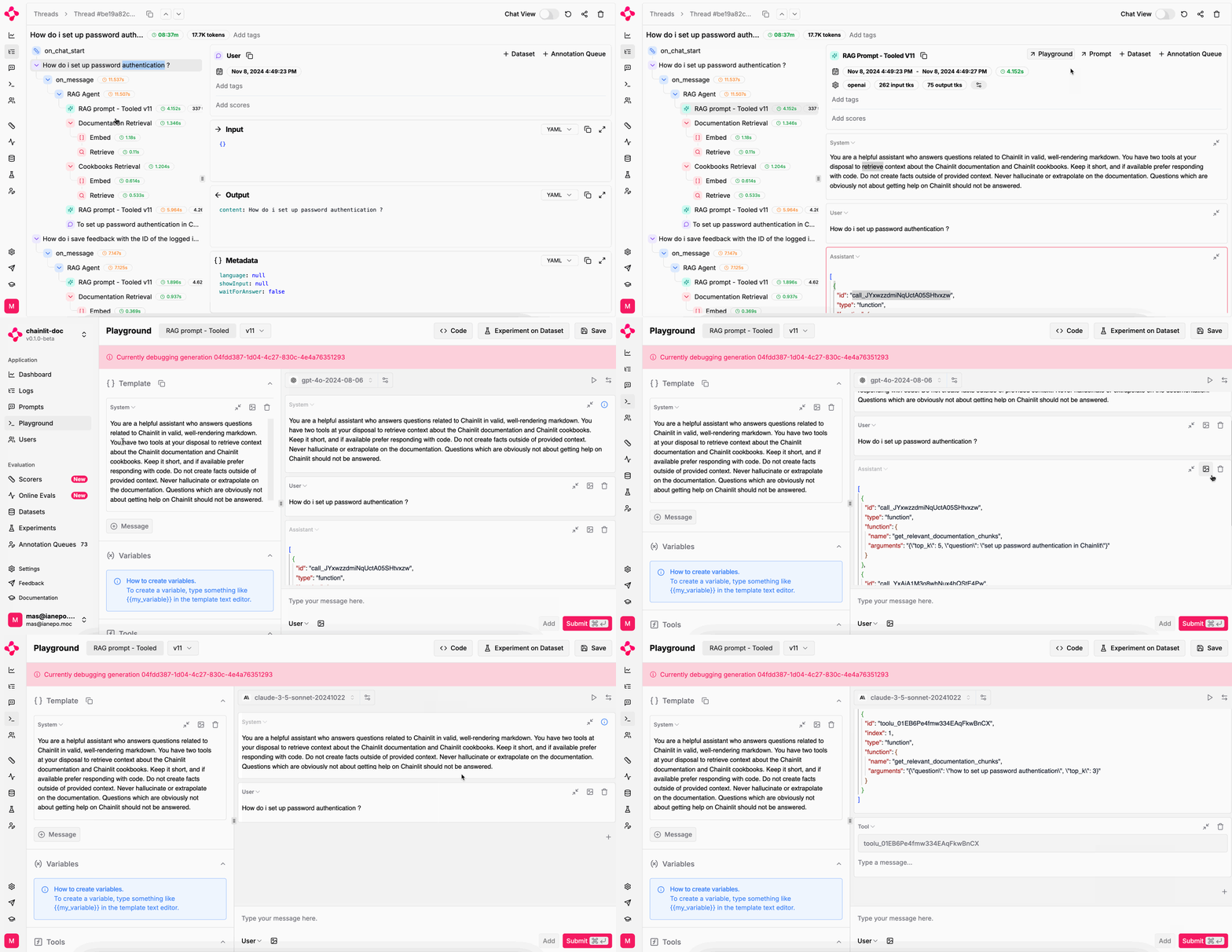
 ### Debug logged LLM generations
 ### Add Tags and Scores from the UI
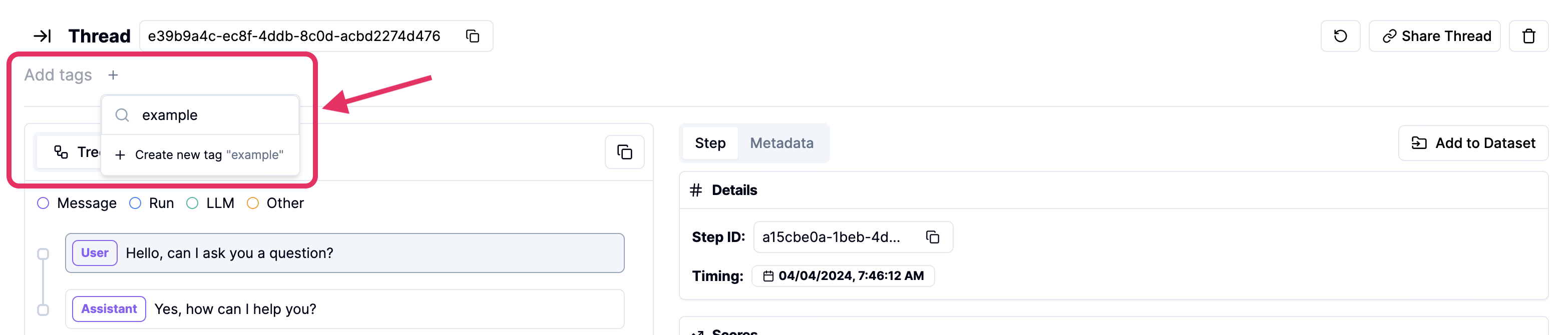
You can add tags and scores directly from the user interface.
### Add Tags and Scores from the UI
You can add tags and scores directly from the user interface.
 ## Conclusion
Logging with Literal AI is composable and unopinionated. It can be done at different levels depending on your use case.
## Conclusion
Logging with Literal AI is composable and unopinionated. It can be done at different levels depending on your use case.