> ## Documentation Index
> Fetch the complete documentation index at: https://docs.literalai.com/llms.txt
> Use this file to discover all available pages before exploring further.
# Annotation Queues
> Annotation Queues help you organise and streamline the human evaluation process. You can easily set-up queues, add data for review and provide an accessible and efficient ui for domain experts to score, tag and add to datasets crucial insights.
## Create an annotation queue
You can access your queues on the `Annotation Queues` page, and create one by clicking the `+` button in the top right corner of the table.
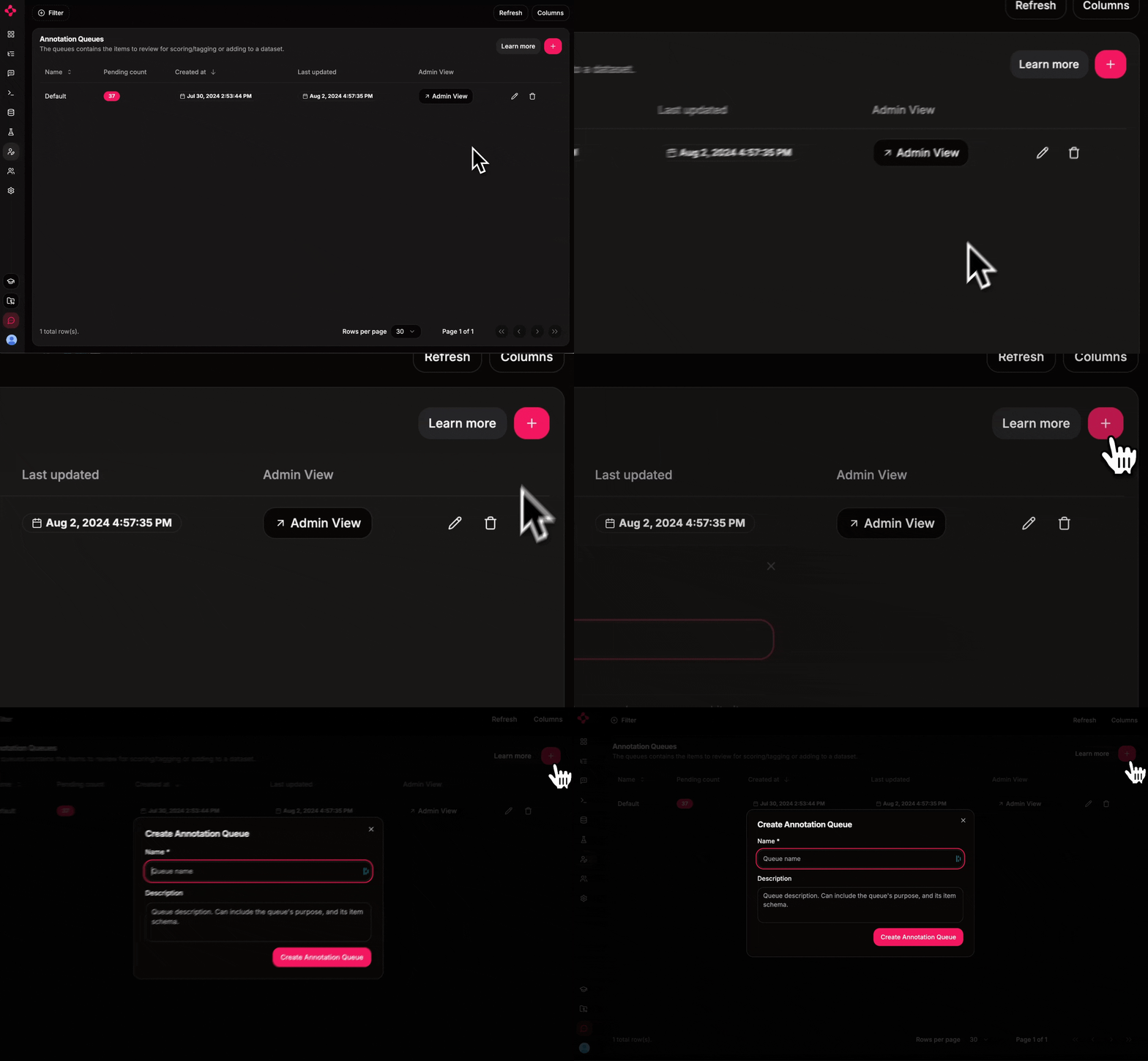 This will open a modal form, that you can fill with a **name** to identify the annotation queue and a **description** to convey the queue meaning.
Each new project comes with a "Default" annotation queue.
## Populate a queue from logs
Once you have created a queue, you can start adding data to it. You can add runs/generations at once from the logs page.
You can also add a single item to the queue from a thread/run/generation detail page.
## Efficiently review queue items
On the `Annotation Queues` page, a reviewer can open a specific queue and start reviewing added items.
This will open a modal form, that you can fill with a **name** to identify the annotation queue and a **description** to convey the queue meaning.
Each new project comes with a "Default" annotation queue.
## Populate a queue from logs
Once you have created a queue, you can start adding data to it. You can add runs/generations at once from the logs page.
You can also add a single item to the queue from a thread/run/generation detail page.
## Efficiently review queue items
On the `Annotation Queues` page, a reviewer can open a specific queue and start reviewing added items.
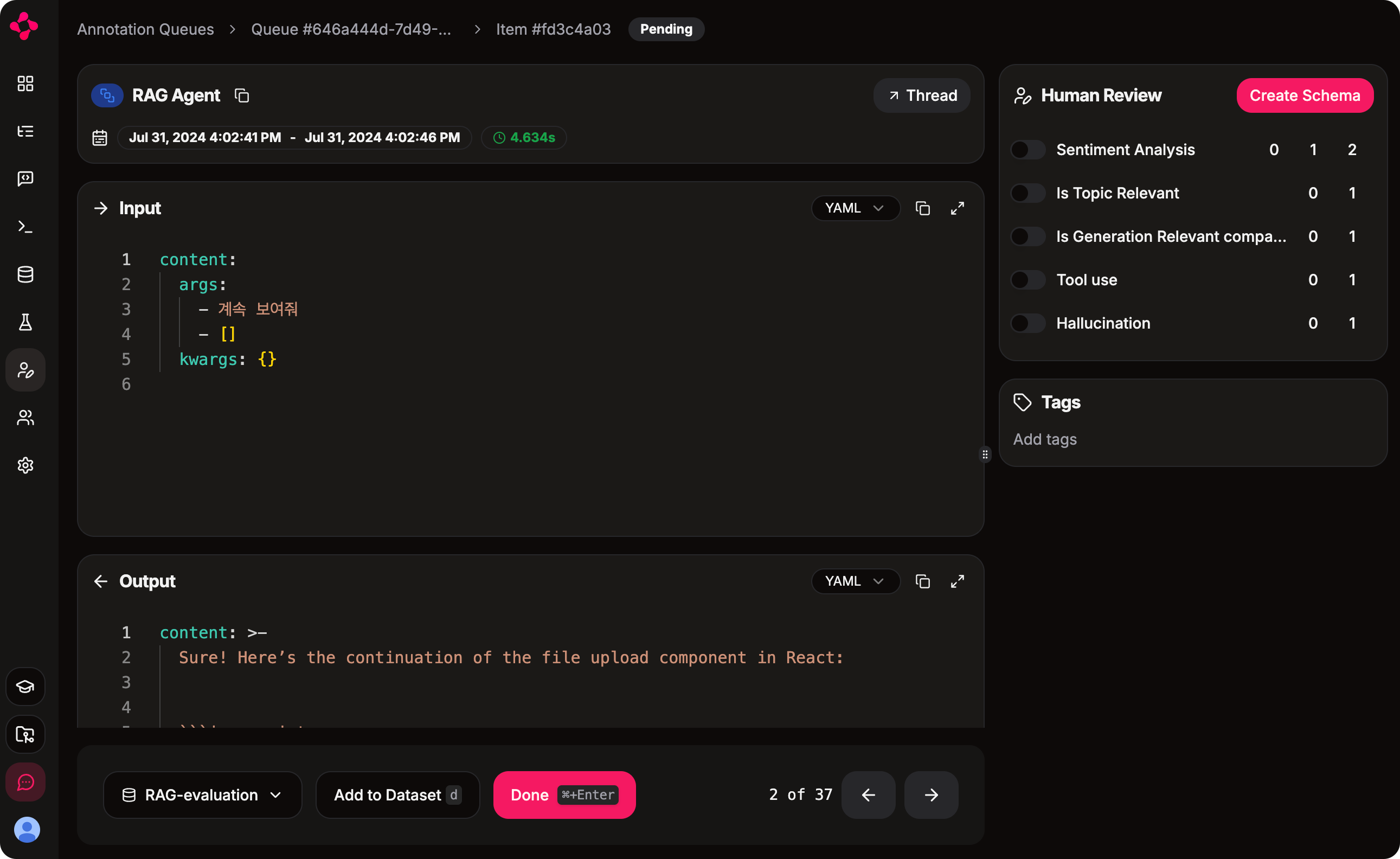 A reviewer can:
* **Score** the item
* **Tag** the item
* **Add to Dataset** the item
Finally, once the review is done, they can mark the item as Reviewed.
## Check progress
Admins can monitor the progress of the queues on the `Annotation Queues` page by clicking on the `Admin View` button.
In this view, the Admin can switch between the `Pending` and `Reviewed` tabs to see how many items are left to review and how many have been reviewed.
A reviewer can:
* **Score** the item
* **Tag** the item
* **Add to Dataset** the item
Finally, once the review is done, they can mark the item as Reviewed.
## Check progress
Admins can monitor the progress of the queues on the `Annotation Queues` page by clicking on the `Admin View` button.
In this view, the Admin can switch between the `Pending` and `Reviewed` tabs to see how many items are left to review and how many have been reviewed.